Hedgehog MT5 settings cover gold position sizing, exit profiles, economic-news entry pauses and Friday pending-order handling.
Available from CheaperForex. Check the current offer or read the separate strategy and evidence assessment.
$119.99 · $95.99 with crypto Buy Hedgehog MT5
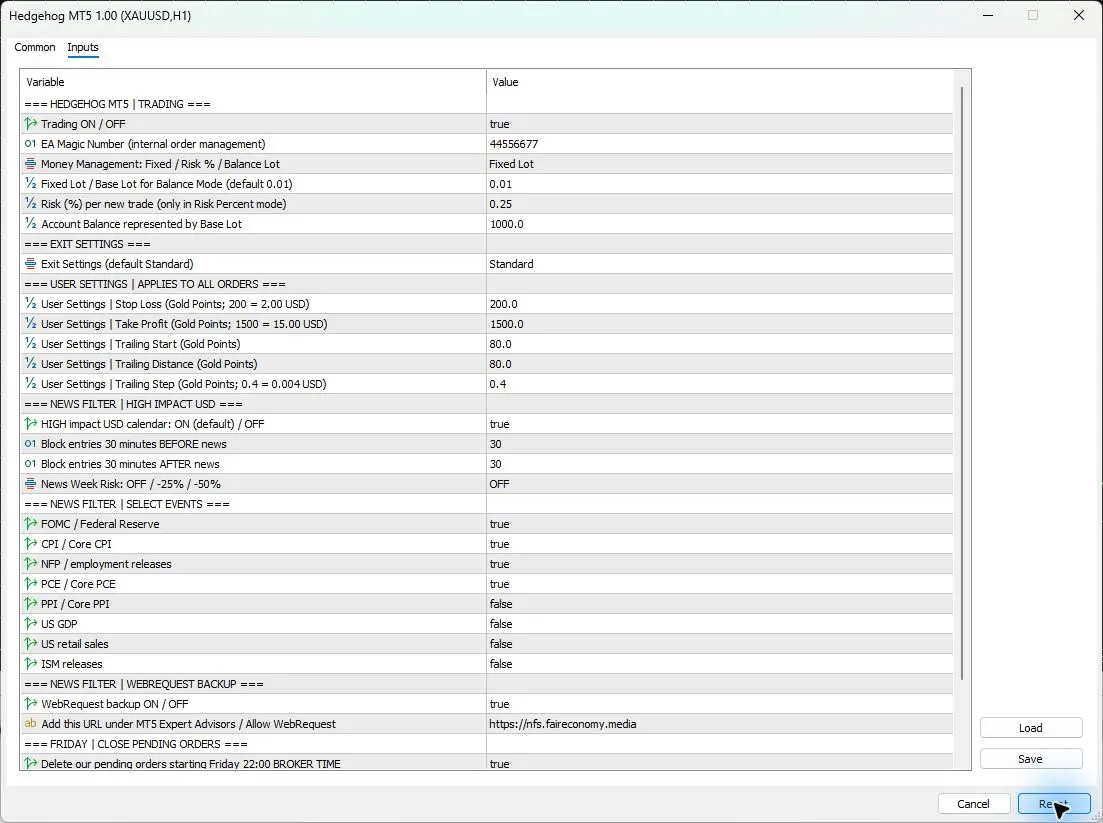
Inputs checked in version 1.00 on 2026-11-14. All 29 saved settings were checked after Reset in the official Market build’s MT5 Inputs window on XAUUSD H1. Automated trading remained off throughout this inspection; no trades or strategy test were run.
Quick setup: XAUUSD on H1
The developer specifies gold/XAUUSD on the one-hour chart. Use the broker’s actual gold symbol, including its suffix where applicable, and check the contract specifications. A similar symbol name alone does not establish an identical tick value, volume step or margin requirement.
- Platform and chart: MT5, XAUUSD, H1.
- Account guidance: the published listing suggests approximately $300 for fixed 0.01 lots and $1,000 or more for automatic-risk sizing. Treat those as developer setup guidelines, not loss limits or proof of sufficient margin.
- Account pricing: the developer lists ECN, Raw Spread and Pro accounts. Compare actual spreads, commissions and execution conditions.
- Leverage: no specific requirement was established by this Inputs inspection. Check the broker’s margin requirement for the intended gold volume.
- Terminal and VPS: keep MT5 connected while the EA is intended to operate. A VPS is an uptime option; it does not make an unsuitable lot size appropriate.
- Permissions: the EA’s Trading ON/OFF field and MT5’s automated-trading permission are separate controls.
Every saved input and its Reset value
The following tables distinguish the visible dropdown names from numeric codes stored in a configuration file. These are the inspected Reset values, not independently tested trading recommendations.
Trading permission and the three sizing controls
Fixed Lot is the default. The 0.25 percentage value is labeled for Risk Percent mode only. Do not assume that value controls a fixed 0.01-lot entry. Balance Lot has its own base-volume and reference-balance fields; the dialog does not establish rounding or volume-limit rules.
| Input | What it does | Reset default | When to change it |
|---|---|---|---|
Trading ON / OFFInpHedgehogTradingEnabled |
The EA’s own trading-permission switch. It does not override MT5 permissions. | true |
Turn off when deliberately pausing its trading logic. |
EA Magic Number (internal order management)InpHedgehogMagicNumber |
Identifier for the EA’s internal order management. | 44556677 |
Use a deliberate unique identifier for separate instances. |
Money Management: Fixed / Risk % / Balance LotInpHedgehogLotMode |
Selects the lot-sizing method. The inspected default is Fixed Lot. | Fixed Lot |
Choose another mode only after checking its resulting volume. |
Fixed Lot / Base Lot for Balance Mode (default 0.01)InpHedgehogFixedLot |
Fixed volume, or the base volume for Balance Lot mode. | 0.01 |
Match the selected mode to account and contract size. |
Risk (%) per new trade (only in Risk Percent mode)InpHedgehogRiskPercent |
Per-new-trade percentage input, explicitly limited to Risk Percent mode. | 0.25 |
When using that mode with the intended exposure. |
Account Balance represented by Base LotInpHedgehogBalanceReference |
Reference account balance paired with the Balance Lot base volume. | 1000.0 |
When deliberately configuring balance-based sizing. |
Exit profile and the separate User Settings fields
Standard is the selected exit profile. The five numeric fields below sit in a separately labeled User Settings section. Their visible values must not be presented as the active Standard-profile stop, target or trailing rules. Select a deliberate custom-exit configuration before treating them as your intended exit settings.
The labels describe gold-point distances: 200 corresponds to a 2.00 USD gold-price movement, 1500 to 15.00, and a 0.4 step to 0.004. These are distance examples from the EA’s labels, not universal cash-loss figures. Account-currency exposure also depends on volume and the broker’s contract specifications.
| Input | What it does | Reset default | When to change it |
|---|---|---|---|
Exit Settings (default Standard)InpExitProfile |
Selects the exit profile; Reset shows Standard. | Standard |
Only when deliberately selecting another exit configuration. |
User Settings | Stop Loss (Gold Points; 200 = 2.00 USD)InpUserStopLossPoints |
Custom stop-loss distance, using the field’s stated gold-point convention. | 200.0 |
For a deliberate User Settings exit configuration. |
User Settings | Take Profit (Gold Points; 1500 = 15.00 USD)InpUserTakeProfitPoints |
Custom take-profit distance, using the field’s stated gold-point convention. | 1500.0 |
For a deliberate User Settings exit configuration. |
User Settings | Trailing Start (Gold Points)InpUserTrailStartPoints |
Custom trailing-start distance in gold points. | 80.0 |
For a deliberate User Settings exit configuration. |
User Settings | Trailing Distance (Gold Points)InpUserTrailDistancePoints |
Custom trailing distance in gold points. | 80.0 |
For a deliberate User Settings exit configuration. |
User Settings | Trailing Step (Gold Points; 0.4 = 0.004 USD)InpUserTrailStepPoints |
Custom trailing-step distance; the observed default includes a fraction. | 0.4 |
Check symbol precision and broker restrictions before changing. |
USD news pauses and the separate news-week selector
News Week Risk is OFF while the high-impact USD calendar is ON. These are separate controls. OFF in the reduction selector does not mean the news entry pause has been disabled. The inspected entry windows are 30 minutes before and 30 minutes after applicable news.
| Input | What it does | Reset default | When to change it |
|---|---|---|---|
HIGH impact USD calendar: ON (default) / OFFInpUseNewsFilter |
Enables the high-impact USD calendar control. | true |
Keep enabled for the documented default reference. |
Block entries 30 minutes BEFORE newsInpNewsMinutesBefore |
Minutes to block entries before applicable news. | 30 |
When deliberately changing the entry-pause window. |
Block entries 30 minutes AFTER newsInpNewsMinutesAfter |
Minutes to block entries after applicable news. | 30 |
When deliberately changing the entry-pause window. |
News Week Risk: OFF / -25% / -50%InpNewsWeekRiskMode |
Separate news-week risk selector; its Reset selection is OFF. | OFF |
Confirm the reduction’s timing and scope before selecting it. |
Named economic-event selection
FOMC, CPI, NFP/employment and PCE are true in the Reset export. PPI, GDP, retail sales and ISM are false. Preserve those distinctions when comparing configurations; do not describe every named event family as enabled.
| Input | What it does | Reset default | When to change it |
|---|---|---|---|
FOMC / Federal ReserveInpNewsFOMC |
Selection for FOMC and Federal Reserve events. | true |
Only when deliberately changing event coverage. |
CPI / Core CPIInpNewsCPI |
Selection for CPI and core CPI events. | true |
Only when deliberately changing event coverage. |
NFP / employment releasesInpNewsNFPJobs |
Selection for NFP and employment releases. | true |
Only when deliberately changing event coverage. |
PCE / Core PCEInpNewsPCE |
Selection for PCE and core PCE events. | true |
Only when deliberately changing event coverage. |
PPI / Core PPIInpNewsPPI |
Selection for PPI and core PPI events. | false |
When deliberately including that event family. |
US GDPInpNewsGDP |
Selection for US GDP releases. | false |
When deliberately including that event family. |
US retail salesInpNewsRetailSales |
Selection for US retail-sales releases. | false |
When deliberately including that event family. |
ISM releasesInpNewsISM |
Selection for ISM releases. | false |
When deliberately including that event family. |
WebRequest backup
The actual Inputs label asks for https://nfs.faireconomy.media in the MT5 Expert Advisors WebRequest allowlist. Follow the supplied instructions in Tools → Options → Expert Advisors and add the exact address where required. Seeing the address in Inputs is not a successful connection test; inspect the journal if calendar data is unavailable.
| Input | What it does | Reset default | When to change it |
|---|---|---|---|
WebRequest backup ON / OFFInpUseNewsBackup |
Enables the news WebRequest backup option. | true |
Follow the current feed and connectivity instructions. |
Add this URL under MT5 Expert Advisors / Allow WebRequestInpWebRequestURL |
Address displayed for the permitted WebRequest list. | https://nfs.faireconomy.media |
Use the exact supplied address; do not guess replacements. |
Friday pending-order handling and dashboard
The cutoff is explicitly in broker server time. The permission concerns deletion of this EA’s pending orders from the Friday cutoff. It does not establish a rule closing every open market position, and it must not be interpreted using the computer’s local clock.
| Input | What it does | Reset default | When to change it |
|---|---|---|---|
Delete our pending orders starting Friday 22:00 BROKER TIMEInpFridayPendingClose |
Enables the EA’s Friday pending-order deletion. | true |
Only when deliberately changing weekend order handling. |
Friday BROKER SERVER HOUR (default 22)InpFridayPendingHour |
Broker-server hour used for the Friday pending-order cutoff. | 22 |
Use the broker clock, not the computer’s local hour. |
Dashboard ON/OFF (default OFF)InpHedgehogDashboardVisible |
Controls whether the EA’s dashboard is displayed. | false |
When you want the dashboard visible. |
Starting configurations: keep a clear reference
The inspected reference is Fixed Lot at 0.01 with Standard exits. News protection and its backup are on, the listed event selection is preserved, Friday pending deletion is on at broker hour 22, and the dashboard is off. This describes the Reset configuration; it does not establish a low-risk preset.
If you choose Risk Percent or Balance Lot, review the resulting volume and account exposure before allowing trading. Change one related group at a time and retain a record of the EA version, symbol, contract, sizing mode and exit profile. Do not combine a custom-exit assumption with a Standard-profile configuration.
Use Save in Inputs to keep a configuration, and inspect all values again after using Load. Match a saved configuration to this EA and build. A preset filename is not evidence that its risk, news selection or exit profile is appropriate for your account.
Broker, spread and clock checks
Inspect the symbol’s tick size/value, volume increment, trading sessions and stop-distance restrictions. Preserve the fractional trailing-step default exactly when documenting it; do not silently round 0.4 to a whole point or relabel it as pips. Broker restrictions still matter when evaluating an intended custom-exit setup.
The developer describes slippage monitoring, but no editable slippage-threshold field appears among these 29 saved settings. Check the journal when investigating execution issues. The inspected set also exposes no general GMT-offset field; its Friday hour explicitly uses broker time.
Common mistakes and fixes
- The EA is not trading: check MT5 permission, the EA’s Trading ON/OFF field, the correct symbol and H1 chart, connection status and journal messages. A news pause can legitimately prevent entry.
- Risk % appears to do nothing: check the sizing selector. The percentage field is explicitly for Risk Percent mode, while Reset uses Fixed Lot.
- Stop-loss behavior does not match 200: check the exit profile. The visible User Settings value is not proof of the active Standard logic.
- Calendar or backup errors: check the exact WebRequest address, allowlist and journal before disabling news protection.
- Friday timing seems wrong: compare the broker’s server clock with the saved hour 22. Do not substitute local time.
- No dashboard appears: the dashboard default is false. This visual setting is separate from the trading-permission switch.
Hedgehog MT5 settings FAQ
Should Hedgehog MT5 run on M1 or H1?
The inspected build and the developer’s setup guidance use XAUUSD on H1. A different timeframe must not be assumed equivalent.
Does the default 0.25 Risk % control Fixed Lot mode?
The field is explicitly labeled for Risk Percent mode only. The Reset sizing selector is Fixed Lot, with fixed volume 0.01.
Are the visible User Settings exits the Standard exits?
The Inputs window separates the selected Standard profile from the User Settings fields. Do not treat their visible numeric values as verified Standard-profile rules.
Does News Week Risk OFF disable the news filter?
No. The separate high-impact USD calendar switch is true, with 30-minute entry pauses before and after applicable news. The news-week reduction selector is OFF.
Does the Friday setting close open positions?
The observed label specifies deletion of this EA’s pending orders from the selected Friday broker-server hour. It does not establish a blanket open-position closure rule.
Does a hidden dashboard mean the EA is disabled?
No. Dashboard visibility defaults to false, while the separate Trading ON/OFF setting defaults to true. Platform permissions and entry conditions still apply.
Sources and inspected version
Inputs checked in version 1.00 on 2026-11-14. The original screenshots and complete native Reset export establish the settings documented here. The official Hedgehog MT5 listing supplies the market and account guidance; its saved description was checked on 8 November 2026. The official Market properties inspected on 14 November display version 1.00. This configuration inspection does not establish trading performance.
Choose the matching product. View the current offer and delivery details before ordering.