The Gold Reaper MT5 settings control gold breakout entries, strategy selection, position sizing, trailing exits and separate news and daily-loss protections.
Available from CheaperForex. Choose the MT5 product for the current offer, or read the separate strategy and evidence assessment.
$349.95 · $279.96 with crypto Buy The Gold Reaper MT5
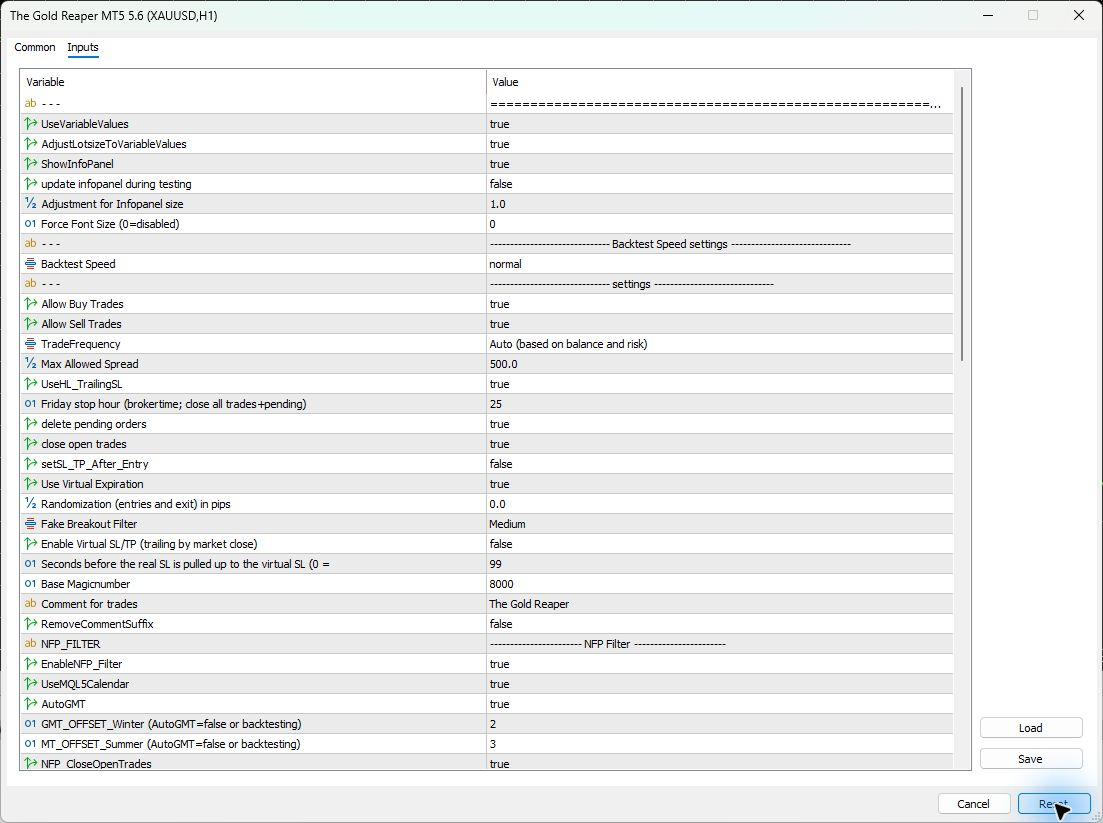
Inputs checked in version 5.6 on 2026-11-14. All 80 saved rows, including ten headings or warnings, were checked after Reset in the actual MT5 Inputs window. This was a configuration inspection, with no trade or performance test.
Quick setup: market, chart and broker
- Market: use the broker’s actual XAUUSD/gold symbol and verify its contract size, digits, volume step and trading session.
- Chart: the developer’s setup uses H1. The strategies calculate their own timeframes internally.
- Starting balance: the current manual gives 600 USD with automatic trade frequency. This is a developer guideline, not a safe-loss threshold.
- Account and leverage: check margin and support for the required pending orders and concurrent strategies. The inspected setup does not establish one universal leverage requirement.
- Execution: the developer recommends low-spread gold trading. Compare actual spread and stop-distance restrictions with the selected settings.
- Connection: keep the Windows terminal or VPS running for EA-managed expiration, trailing and news actions. Check permissions and journal messages before enabling automated trading.
Every saved input, grouped by purpose
Defaults below are from the inspected 5.6 Reset export. Dropdowns use the visible names shown in MT5 rather than their stored numeric codes. The developer’s linked 5.1 manual supplies behavior explanations; the newer build inspection supplies these defaults.
Price adaptation and display
Variable Values and its lot adjustment work together: price-scaled stop distances can change the money exposed by a fixed volume. Backtest Speed is a separate tester-only control; a faster exploratory test should not be treated as identical to the normal processing setting.
| Input | What it does | Reset default | When to change it |
|---|---|---|---|
General headinglijntje |
Separator for the opening settings. | ============================================================= |
No change needed. |
| UseVariableValues | Scales entry, exit and trailing distances with the gold price. | true |
Keep paired with the lot-size adjustment. |
| AdjustLotsizeToVariableValues | Compensates lot sizes when price scaling changes stop distances. | true |
Review whenever variable values are changed. |
| ShowInfoPanel | Shows the account and per-strategy information panel. | true |
For display or VPS-resource preferences. |
update infopanel during testingUpdateInfoTesting |
Updates the panel during Strategy Tester runs. | false |
Enable when watching a visual test. |
Adjustment for Infopanel sizeInfoPanelSizeAdjust |
Scales the information panel for the display. | 1.0 |
If the panel is difficult to read. |
Force Font Size (0=disabled)SetFontSize |
Overrides automatic font sizing; zero leaves it automatic. | 0 |
If automatic sizing does not suit the screen. |
Backtest Speed headingBacktestSpeed_string |
Separator for the tester-speed selector. | ------------------------------ Backtest Speed settings ------------------------------ |
No change needed. |
Backtest SpeedBacktestSpeed |
Selects tester processing speed; live trading is unaffected. | normal |
Use normal for final test comparisons. |
Entry selection and execution
The Reset frequency is Auto. In that mode the EA selects strategies from balance and the chosen sizing configuration. Switching a strategy off removes its pending orders, while existing trades remain managed. Friday hour 25 disables the cutoff according to the manual, even though both Friday closure switches are true.
| Input | What it does | Reset default | When to change it |
|---|---|---|---|
Trading settings headingspreadfilter |
Separator for the trading settings. | ------------------------------ settings ------------------------------ |
No change needed. |
Allow Buy TradesAllowBuyTrades |
Allows new buy entries; existing trades remain managed. | true |
To deliberately restrict new entry direction. |
Allow Sell TradesAllowSellTrades |
Allows new sell entries; existing trades remain managed. | true |
To deliberately restrict new entry direction. |
| TradeFrequency | Selects automatic, fixed-frequency or manual-strategy operation. | Auto (based on balance and risk) |
Check active strategies and sizing together. |
Max Allowed SpreadMaxSpread |
Entry spread limit in points, also affected by variable-value scaling. | 500.0 |
After checking broker precision and costs. |
| UseHL_TrailingSL | Uses high/low trailing for strategies configured to support it. | true |
When evaluating that trailing method. |
Friday stop hour (brokertime; close all trades+pending)FridayStopHour |
Broker-time Friday cutoff; the manual says values above23 disable it. | 25 |
To configure a deliberate Friday cutoff. |
delete pending ordersFridayClosePending |
Controls pending-order deletion for the Friday cutoff. | true |
Together with a valid Friday cutoff hour. |
close open tradesFridayCloseOpen |
Controls open-trade closure for the Friday cutoff. | true |
Together with a valid Friday cutoff hour. |
| setSL_TP_After_Entry | Attaches SL/TP after the fill for broker compatibility. | false |
Only if the broker rejects protected pending orders. |
Use Virtual ExpirationVirtual_expiration |
Makes the EA delete expired pending orders itself. | true |
For the documented broker-expiry behavior. |
Randomization (entries and exit) in pipsRandomization |
Varies entry and exit levels by a random pip amount. | 0.0 |
Only for a documented permitted configuration. |
Fake Breakout FilterFakeOutFilter |
Selects how broadly adverse candle-close breakout checks apply. | Medium |
When evaluating that exit filter separately. |
Virtual trailing, identity and comments
Virtual SL/TP defaults to false. When enabled, the manual describes initial broker SL/TP remaining in place while later exit levels are managed inside the EA. The 99-second setting controls when the real stop is also pulled up; zero leaves the original broker stop unchanged. Virtual management needs a running connection. The separate after-entry SL/TP compatibility option can create a brief interval before protection is attached.
| Input | What it does | Reset default | When to change it |
|---|---|---|---|
Enable Virtual SL/TP (trailing by market close)EnableVirtualSLTP |
Manages later exit levels internally while retaining initial broker SL/TP. | false |
After checking continuous terminal connectivity. |
Seconds before the real SL is pulled up to the virtual SLSetVSL_to_hardSL_sec_delay |
Delay before moving the broker stop to a virtual level; zero disables that move. | 99 |
Only with virtual SL/TP intentionally enabled. |
Base MagicnumberST1_MagicNumber |
Starting trade identifier; internal strategies use successive numbers. | 8000 |
Avoid overlaps with another instance. |
Comment for tradesST1_Comment |
Comment attached to this EA’s trades. | The Gold Reaper |
For a recognizable account-history label. |
| RemoveCommentSuffix | Removes the strategy suffix from trade comments. | false |
For a deliberate comment-format preference. |
NFP calendar and broker time
NFP protection is enabled; interest-rate and CPI protection are separate and disabled by default. Their stored close flags and 100/60-minute windows do not make them active. AutoGMT uses the broker clock; the manual offsets apply when AutoGMT is off or during backtesting. The manual describes the MT5 calendar falling back to internal dates in the tester.
| Input | What it does | Reset default | When to change it |
|---|---|---|---|
| NFP_FILTER | Separator for the NFP settings. | ----------------------- NFP Filter ----------------------- |
No change needed. |
| EnableNFP_Filter | Enables the non-farm-payrolls news window. | true |
When deliberately changing event coverage. |
| UseMQL5Calendar | Uses the MT5 calendar; the manual describes an internal-date tester fallback. | true |
Follow the current calendar-source instructions. |
| AutoGMT | Detects the broker offset for event timing. | true |
Use manual offsets only after checking server time. |
GMT_OFFSET_Winter (AutoGMT=false or backtesting)Broker_GMT_OFFSET_Winter |
Manual winter broker offset for manual mode or backtesting. | 2 |
To match the broker’s documented winter clock. |
GMT_OFFSET_Summer (AutoGMT=false or backtesting)Broker_GMT_OFFSET_Summer |
Manual summer broker offset for manual mode or backtesting. | 3 |
To match the broker’s documented summer clock. |
| NFP_CloseOpenTrades | Closes open trades when the NFP window begins. | true |
If deliberately changing treatment of running trades. |
| NFP_ClosePendingOrders | Deletes pending orders around the NFP release. | true |
If deliberately changing pending-order handling. |
| NFP_MinutesBefore | Minutes before NFP at which the filter starts. | 100 |
For a documented alternative news window. |
| NFP_MinutesAfter | Minutes after NFP before trading can resume. | 60 |
For a documented alternative news window. |
Interest-rate filter
| Input | What it does | Reset default | When to change it |
|---|---|---|---|
Interest Rate Filter headingIR_FILTER |
Separator for the rate-decision settings. | ----------------------- Interest Rate Filter ----------------------- |
No change needed. |
| EnableIR_Filter | Enables the scheduled interest-rate filter. | false |
When adding this separate event filter. |
| IR_CloseOpenTrades | Closes open trades before an applicable rate decision. | true |
When changing the enabled filter’s exit action. |
| IR_ClosePendingOrders | Deletes pending orders before an applicable rate decision. | true |
When changing the enabled filter’s order action. |
| IR_MinutesBefore | Pre-event waiting interval, in minutes. | 100 |
For a documented alternative rate-decision window. |
| IR_MinutesAfter | Post-event waiting interval, in minutes. | 60 |
For a documented alternative rate-decision window. |
CPI filter
| Input | What it does | Reset default | When to change it |
|---|---|---|---|
CPI Filter headingCPI_FILTER |
Separator for the inflation-event settings. | ----------------------- CPI Filter ----------------------- |
No change needed. |
| EnableCPI_Filter | Enables the scheduled CPI inflation filter. | false |
When adding this separate event filter. |
| CPI_CloseOpenTrades | Closes open trades before an applicable CPI release. | true |
When changing the enabled filter’s exit action. |
| CPI_ClosePendingOrders | Deletes pending orders before an applicable CPI release. | true |
When changing the enabled filter’s order action. |
| CPI_MinutesBefore | Pre-event waiting interval, in minutes. | 100 |
For a documented alternative CPI window. |
| CPI_MinutesAfter | Post-event waiting interval, in minutes. | 60 |
For a documented alternative CPI window. |
Level adjustments
These offsets change trade levels and can change exposure. They do not establish compliance with a firm’s rules. Keep entry, stop and trailing changes documented rather than using an old preset as an assumed match.
| Input | What it does | Reset default | When to change it |
|---|---|---|---|
Propfirm unique trades settings headingpropfirmsettings |
Separator for optional level offsets. | ----------------------- Propfirm unique trades settings ----------------------- |
No change needed. |
| AdjustEntry | Offsets entry levels in pips. | 0.0 |
Only with a documented level-adjustment plan. |
| AdjustSL | Offsets stop-loss levels in pips, changing potential loss distance. | 0.0 |
Recheck exposure before changing stop distances. |
| AdjustTP | Offsets take-profit levels in pips. | 0.0 |
When evaluating a defined target adjustment. |
| AdjustTrailSL | Offsets trailing stop-loss distances in pips. | 0.0 |
When evaluating a defined trailing adjustment. |
| AdjustTrailTP | Offsets trailing take-profit distances in pips. | 0.0 |
When evaluating a defined trailing adjustment. |
| AdjustBreakEven | Offsets the break-even level in pips. | 0.0 |
When evaluating a defined break-even adjustment. |
Lot sizing and drawdown controls
Total drawdown sizing and daily-loss protection do different jobs. The Reset 30.0 total-DD value calibrates lots against historical behavior; it cannot guarantee that future losses stop there. The separate daily control defaults to zero, meaning disabled. OnlyUp is true and can preserve larger lot sizing after losses. Reset values are not an account-specific risk recommendation.
| Input | What it does | Reset default | When to change it |
|---|---|---|---|
LotSize Settings headingLotSizeSettings |
Separator for the sizing settings. | ----------------------- LotSize Settings ----------------------- |
No change needed. |
manually set balance to use (if > 0)ManualBalance |
Uses a specified calculation balance when greater than zero. | 0.0 |
To deliberately allocate a fixed calculation balance. |
Lotsize calculation methodRisk |
Chooses fixed lots, historical-DD sizing or per-strategy risk sizing. | Max Allowed Total Drawdown |
Check which dependent fields the method uses. |
| StartLots | Fixed starting volume for the use-StartLots method. | 0.01 |
Together with manually selected trade frequency. |
Max Allowed TOTAL DrawdownMaxAllowedDD |
Historical-drawdown sizing target, expressed as a percentage. | 30.0 |
After reviewing total exposure; not a loss guarantee. |
Weighted LotsizeUseWeightedLots |
Weights lot sizing using the active strategies’ differing historical risk. | true |
When evaluating the sizing allocation. |
Max Risk Per StratMaxRiskPerStrategy_ |
Percentage allowance for the per-strategy sizing method. | 1.0 |
Account for how many strategies can run together. |
Set Max DAILY Drawdown (Prop Firms)PropFirmMaxDailyDD |
Daily-loss percentage control that closes trades/orders; zero disables it. | 0.0 |
Against the account’s actual daily-loss requirements. |
| OnlyUp | Keeps sizing from the remembered high balance after losses. | true |
When deliberately changing sizing after a drawdown. |
Reset Highest Balance for OnlyUpResetHighestBalance |
Clears the remembered OnlyUp high-balance reference. | false |
For a deliberate one-off reference reset. |
Reset Highest Balance on a withdrawalResetHighestBalanceOnWithdrawal |
Resets that high-balance reference after a withdrawal. | true |
When choosing withdrawal/reference handling. |
| CheckMargin | Checks free margin before sending a new order. | true |
Keep enabled for the default reference setup. |
Use Equity Instead of BalanceUseEquity |
Uses equity, including floating profit/loss, instead of balance for sizing. | false |
When deliberately changing the sizing reference. |
Manual strategy selection
All nine switches are true, but they take effect only with Manual strategy selection. They do not establish that Auto runs all nine strategies. The dialog explicitly warns against combining manual selection with Max Allowed Total Drawdown sizing. The low/medium/high labels classify the developer’s strategies; they are not tested account-risk tiers.
| Input | What it does | Reset default | When to change it |
|---|---|---|---|
Manual Strategy Selection headingManualStratSelect |
Separator for individual strategy switches. | ------------------------- Manual Strategy Selection ------------------------- |
No change needed. |
Manual strategy warningManStratWarn |
Warns against combining manual strategies with total-DD sizing. | !! DO NOT RUN MANUAL STRATEGIES WHILE USING 'MAX ALLOWED TOTAL DD' OPTION !! |
Follow the warning; it is not an input value to optimize. |
Run Strategy 1 (low risk)RunStrat1 |
Includes strategy1 when manual strategy selection is active. | true |
Only in a compatible manual-selection setup. |
Run Strategy 2 (low risk)RunStrat2 |
Includes strategy2 when manual strategy selection is active. | true |
Only in a compatible manual-selection setup. |
Run Strategy 3 (low risk)RunStrat3 |
Includes strategy3 when manual strategy selection is active. | true |
Only in a compatible manual-selection setup. |
Run Strategy 4 (med risk)RunStrat4 |
Includes strategy4 when manual strategy selection is active. | true |
Only in a compatible manual-selection setup. |
Run Strategy 5 (med risk)RunStrat5 |
Includes strategy5 when manual strategy selection is active. | true |
Only in a compatible manual-selection setup. |
Run Strategy 6 (med risk)RunStrat6 |
Includes strategy6 when manual strategy selection is active. | true |
Only in a compatible manual-selection setup. |
Run Strategy 7 (med risk)RunStrat7 |
Includes strategy7 when manual strategy selection is active. | true |
Only in a compatible manual-selection setup. |
Run Strategy 8 (high risk)RunStrat8 |
Includes strategy8 when manual strategy selection is active. | true |
Only in a compatible manual-selection setup. |
Run Strategy 9 (high risk)RunStrat9 |
Includes strategy9 when manual strategy selection is active. | true |
Only in a compatible manual-selection setup. |
Save and load a reproducible configuration
Use Save in Inputs to preserve the inspected build’s values. Use Load with a compatible configuration, then read back the sizing method, frequency, news switches, magic number and offsets before enabling trading. Loading a file successfully does not establish that its strategy choices or exposure are suitable.
For a starting record, keep the EA version, exact symbol, contract size, account currency, sizing method, calculated lot sizes and enabled strategies together. Review their combined exposure before enabling the EA.
Broker time, WebRequest and execution checks
Check winter and summer broker offsets against the actual server clock. For AutoGMT, the current manual lists WorldTimeServer; it also lists a backup news endpoint. Other listed licensing endpoints depend on how the specific edition is supplied. Follow the matching edition’s instructions rather than adding every address indiscriminately.
Points and pips are different units in this interface. Maximum spread is documented in points; randomization and level offsets are documented in pips. Do not convert these to a universal gold-price distance without checking symbol precision. Broker gaps, spread and slippage can change the result of a requested stop or daily close.
Common mistakes and fixes
- No new trades: check symbol, market session, automated-trading permission, margin, spread, news status and the Experts/Journal messages before relaxing filters.
- Unexpected lot size: read the sizing method with its active field, frequency, ManualBalance, OnlyUp and equity/balance choice.
- Manual switches appear ignored: check TradeFrequency. Individual strategy toggles apply to Manual strategy selection.
- Friday trades remain open: hour 25 disables the cutoff; true close flags alone do not select a valid cutoff hour.
- News timing differs: check event coverage, calendar availability and broker offset. IR and CPI filters are off in Reset.
- A virtual exit is missed: check terminal/VPS connectivity and journal messages; broker-side and terminal-managed levels have different dependencies.
The Gold Reaper MT5 settings FAQ
Which timeframe should I attach it to?
The setup instructions use an H1 gold chart. Internal strategies read their own timeframes, so the attached chart is not a way to force all strategies onto one period.
Is 30% a guaranteed maximum loss?
No. Max Allowed TOTAL Drawdown is a historical-based sizing target. The separate daily control has a different action, and neither removes execution or future-market risk.
Are all three news filters active after Reset?
No. NFP is enabled; interest-rate and CPI filters are disabled. Their stored close flags and time windows apply when the corresponding filter is enabled.
Does virtual SL/TP remove the original broker stop?
The manual describes the initial broker SL/TP remaining while later levels are managed virtually. The separate after-entry protection option and real-stop update delay must be considered independently.
Can I combine manual strategies with total-DD sizing?
The Inputs window explicitly warns against that combination. Choose a compatible method and check the resulting exposure before enabling the EA.
Can I reuse an older set file?
Verify its build compatibility and read back every value after loading. Old files may change strategy selection, news coverage, sizing or offsets without an obvious error.
Sources and version record
Inputs checked in version 5.6 on 2026-11-14. Configuration fields and defaults were inspected in the actual MT5 window after Reset and checked against its full Save export. Behavior explanations were compared with the developer’s linked Gold Reaper 5.1 manual, dated October 2026, and the current product description. This inspection does not establish trading performance.
Choose the matching MT5 edition. Check the current offer and delivery details before ordering.