Big Forex Players MT5 settings combine bank-position and indicator strategies with a multicurrency robot, separate pending and additional-system controls, and economic-news, geopolitical and volatility filters.
Available from CheaperForex. See the current MT5 offer and the separate strategy assessment.
$1,200.99 · $960.79 with crypto Buy Big Forex Players MT5
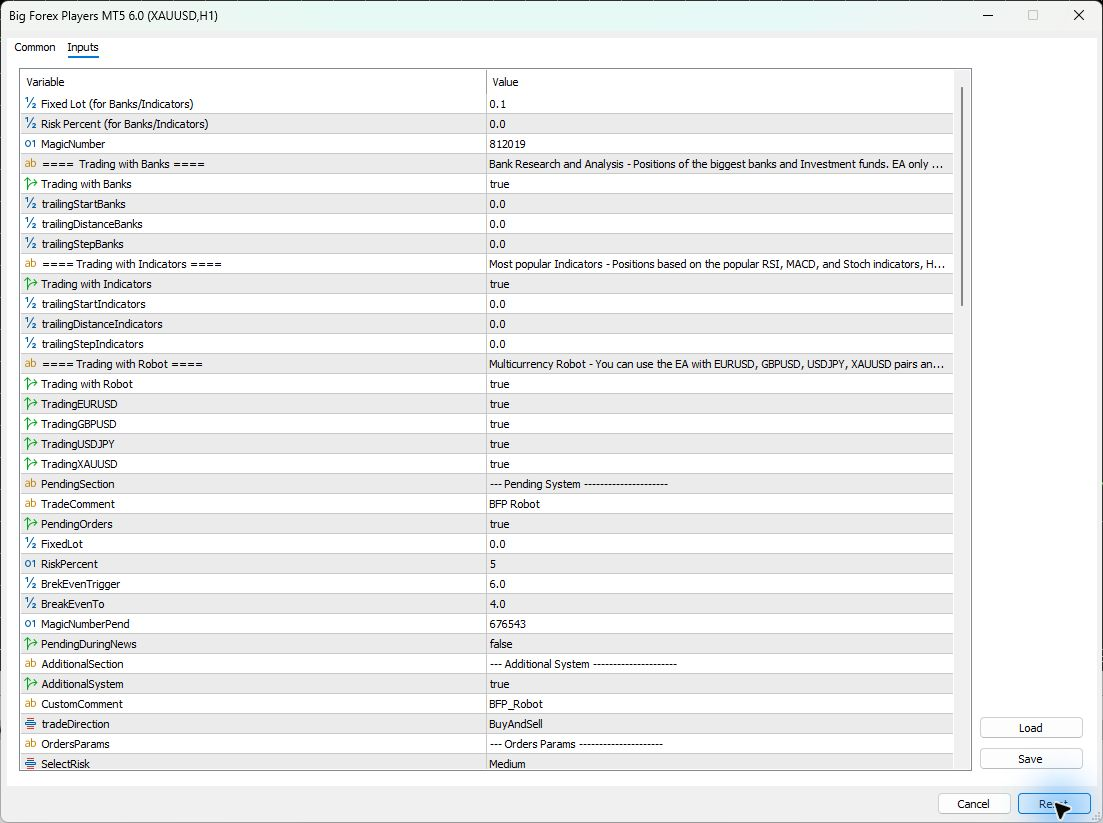
Inputs checked in version 6.0 on 2026-11-14. The tables cover the controls and information rows observed after Reset in the real MT5 Inputs window and cross-checked with its Save export. This was a configuration inspection, with automated trading disabled and no trading or performance test.
Quick setup: chart, symbol and account
- Chart: the current setup instructions use H1. Bank/indicator sources and robot logic have their own described holding periods and calculations.
- Symbols: the inspected robot group has EURUSD, GBPUSD, USDJPY and XAUUSD switches. Confirm the intended chart and broker symbol, including any suffix.
- Starting balance: the developer gives a $1,000 guideline. Check account currency and contract size; it does not establish an acceptable loss or guarantee that Reset volumes suit the account.
- Leverage: the setup text names 1:30–1:1000, while its specification table starts at 1:10. Check actual broker margin requirements instead of treating those ranges as performance recommendations.
- Account and execution: check supported position handling, minimum volume, volume step and spread. The public listing names several account types, including hedging, RAW and ECN.
- VPS and connections: keep MT5 running and connected. Confirm the required data-service and news permissions using the matching instructions; a populated Inputs window does not verify those live connections.
Inputs and defaults by operating group
The 6.0 dialog contains Pending System and Additional System sections beyond the three broad strategy descriptions in the public overview. The published parameter list does not fully map every new control to every source of trades. Read the sections together and check the journal before assuming one switch governs the whole EA.
The tables use the visible dropdown names; stored enum numbers are not risk percentages. The long S0, S1 and S2 information strings are summarized as text headings. Operational default values are shown directly. Where a field’s units or scope are not documented, that limitation is stated.
Bank and indicator strategy controls
The shared bank/indicator fixed-volume default is 0.1, while its percentage field is 0.0. Both strategy switches are true. These fields are separate from the pending system’s 5% field and the additional system’s Lots value. Do not assume one volume setting replaces all the others.
| Input | What it does | Reset default | When to change it |
|---|---|---|---|
Fixed Lot (for Banks/Indicators)FixedLot_ |
Fixed-volume setting for the bank and indicator strategies. | 0.1 |
Check their volume together with Risk Percent. |
Risk Percent (for Banks/Indicators)RiskPercent_ |
Percentage-sizing field for the bank and indicator strategies. | 0.0 |
Confirm how percentage and fixed volume interact. |
| MagicNumber | Trade identifier for this bank/indicator instance. | 812019 |
Use a distinct identifier for separate instances. |
Trading with Banks headingS0 |
Information row describing the bank-position strategy. | Bank strategy information text |
No trading adjustment is needed. |
Trading with BanksTradingWithBanksInit |
Enables the developer-described bank-position strategy. | true |
After checking the required data connection. |
| trailingStartBanks | Trailing activation setting for the bank strategy. | 0.0 |
Confirm its unit and zero-value behavior first. |
| trailingDistanceBanks | Trailing distance setting for the bank strategy. | 0.0 |
Together with its activation and step settings. |
| trailingStepBanks | Trailing adjustment step for the bank strategy. | 0.0 |
After checking the strategy’s trailing instructions. |
Trading with Indicators headingS1 |
Information row describing the indicator strategy. | Indicator strategy information text |
No trading adjustment is needed. |
Trading with IndicatorsTradingWithIndicatorsInit |
Enables the strategy associated with RSI, MACD and Stochastic. | true |
When choosing which strategy sources to use. |
| trailingStartIndicators | Trailing activation setting for the indicator strategy. | 0.0 |
Confirm its unit and zero-value behavior first. |
| trailingDistanceIndicators | Trailing distance setting for the indicator strategy. | 0.0 |
Together with its activation and step settings. |
| trailingStepIndicators | Trailing adjustment step for the indicator strategy. | 0.0 |
After checking the strategy’s trailing instructions. |
Robot selection and pending-system controls
The robot pair switches and PendingOrders are true. The pending section has its own volume fields, break-even settings, trade comment and identifier. Its default PendingDuringNews permission is false; this is separate from the economic-news filter further down.
Break-even fields are visible, but the dialog does not label their unit. Do not convert 6.0 and 4.0 into pips, dollars or a percentage without the matching explanation.
| Input | What it does | Reset default | When to change it |
|---|---|---|---|
Trading with Robot headingS2 |
Information row describing the multicurrency robot strategy. | Robot strategy information text |
No trading adjustment is needed. |
Trading with RobotTradingWithRobotInit |
Enables the robot-strategy option shown above the pair switches. | true |
When deliberately selecting strategy sources. |
| TradingEURUSD | EURUSD selection in the robot-strategy group. | true |
For the intended supported symbol configuration. |
| TradingGBPUSD | GBPUSD selection in the robot-strategy group. | true |
For the intended supported symbol configuration. |
| TradingUSDJPY | USDJPY selection in the robot-strategy group. | true |
For the intended supported symbol configuration. |
| TradingXAUUSD | XAUUSD selection in the robot-strategy group. | true |
After checking the broker’s gold contract. |
Pending System headingPendingSection |
Separator for the pending-system controls. | --- Pending System --------------------- |
No trading adjustment is needed. |
| TradeComment | Comment text in the pending-system section. | BFP Robot |
For identification without replacing magic-number checks. |
PendingOrdersPendingOrdersInit |
Enables the pending-order system option. | true |
With the matching system instructions. |
| FixedLot | Fixed-volume field within the pending-system section. | 0.0 |
Check its interaction with this section’s RiskPercent. |
| RiskPercent | Risk-percentage field within the pending-system section. | 5 |
Only after checking the sizing method and exposure. |
BreakEvenTriggerBreakEvenTriggerInit |
Threshold for the pending system’s break-even action. | 6.0 |
Confirm the threshold’s unit before changing it. |
BreakEvenToBreakEvenToInit |
Destination setting for that break-even adjustment. | 4.0 |
Together with the trigger and its documented units. |
MagicNumberPendMagicNumberInit |
Trade identifier shown for the pending system. | 676543 |
For a separately identified pending-system instance. |
PendingDuringNewsPendingDuringNewsInit |
Permission for the pending system during news. | false |
Alongside the separate economic-news settings. |
Additional system, order modes and exits
AdditionalSystem is true and the selected operating mode is Medium. The developer’s Low/Medium/High names describe modes with different behavior and possible position counts; they are not independently established account-risk tiers.
The public reference describes individual TP/SL and hidden levels for Low mode. The newer dialog also has FixedTotalSLTP for Medium/High. A stored TP/SL value therefore does not prove that every enabled system uses that value in every mode. The displayed MaxDD default is 100.0% of balance, not 1%; it is not a conservative loss limit or a guarantee.
| Input | What it does | Reset default | When to change it |
|---|---|---|---|
Additional System headingAdditionalSection |
Separator for the additional-system controls. | --- Additional System --------------------- |
No trading adjustment is needed. |
AdditionalSystemAdditionalSystemInit |
Enables the additional-system option. | true |
With the matching system instructions. |
| CustomComment | Comment text within the additional-system section. | BFP_Robot |
To identify the configured instance. |
| tradeDirection | Selects allowed buy/sell direction. | BuyAndSell |
To deliberately restrict new entry direction. |
Orders Params headingOrdersParams |
Separator for the order-management settings. | --- Orders Params --------------------- |
No trading adjustment is needed. |
| SelectRisk | Selects the developer’s Low, Medium or High operating mode. | Medium |
Check how that mode changes position management. |
| OrdersStep | Order spacing, described in points by the public parameter reference. | 12.0 |
Against symbol precision and combined exposure. |
| OrdersProfit | Profit target in account currency in the public reference. | 25.0 |
For the applicable group of positions. |
| TrailingStopStart | Trailing activation setting in this order group. | 0.0 |
Confirm its unit and zero-value behavior first. |
| TrailingStopStep | Trailing adjustment step in this order group. | 0.0 |
Together with the activation setting. |
FixedTotalSLTP (Medium/High)FixedSLTP |
Fixed total SL/TP selector labeled for Medium/High modes. | false |
Only with a documented mode-specific setup. |
SL & TP headingTakeProfitParams |
Separator for profit, loss and stop settings. | --- SL & TP --------------------------- |
No trading adjustment is needed. |
| TPSLHidden | Hides displayed SL/TP levels in the developer-described Low mode. | false |
After checking terminal-managed exit dependencies. |
| TakeProfit | Individual-trade TP, described in pips for Low mode. | 30.0 |
For the mode in which this field applies. |
| StopLoss | Individual-trade SL, described in pips for Low mode. | 30.0 |
For the mode in which this field applies. |
MaxDD (% of Balance)StopAtLoss |
Balance-percentage loss threshold shown by the dialog. | 100.0 |
After checking its scope and combined exposure. |
Stop at profit (% of OrdersProfit)StopAtProfit |
Profit-stop field labeled as a percentage of OrdersProfit. | 0.0 |
Confirm the trigger and meaning of zero. |
| DisableAfterLoss | Controls stopping new entries after the loss condition. | false |
With the loss threshold and restart instructions. |
Geopolitical and volatility filtering
The 6.0 release description adds AI Geopolitical Filter protection alongside scheduled news and volatility controls. AI Filter and Volatility Filter are both true in Reset. Their presence does not establish that an external service is connected or that sudden losses are prevented.
| Input | What it does | Reset default | When to change it |
|---|---|---|---|
AI FilterAIFilterInit |
Enables the AI-filter option associated with the 6.0 update. | true |
Check the filter’s connection and status first. |
Volatility FilterEnableVolatilityFilter |
Enables the separate volatility-filter option. | true |
When evaluating that entry filter independently. |
| VolatilityCheckSeconds | Volatility checking interval, explicitly labeled in seconds. | 10 |
With the deviation threshold and current instructions. |
| MaxPriceDeviationPoints | Price-deviation threshold, explicitly labeled in points. | 150 |
After checking symbol precision and intended sensitivity. |
Economic-news coverage and separate news thresholds
NewsFilter is true, with 60-minute windows before and after applicable events. USD and EUR coverage are true; the other displayed currencies are false. FindKeyword is false, so its stored list does not narrow event matching until that option is enabled.
The news-time loss and profit fields are separate from the entry-pause windows. Check how they treat positions already open. A true news switch does not itself demonstrate that every position is closed before an event.
| Input | What it does | Reset default | When to change it |
|---|---|---|---|
NewsFilter Params headingNewsFilterParams |
Separator for economic-calendar controls. | --- NewsFilter Params --------------------- |
No trading adjustment is needed. |
NewsFilterCheckNewsFilterInit |
Enables the scheduled economic-news filter. | true |
Keep the coverage and pause windows consistent. |
| doNotTradeBeforeInMinutes | Entry-pause minutes before covered economic news. | 60 |
For a documented alternative pause window. |
| doNotTradeAfterInMinutes | Entry-pause minutes after covered economic news. | 60 |
For a documented alternative pause window. |
Report for USDReportForUSD |
Includes applicable USD events in the filter. | true |
For the intended currency-event coverage. |
Report for EURReportForEUR |
Includes applicable EUR events in the filter. | true |
For the intended currency-event coverage. |
Report for GBPReportForGBP |
Includes applicable GBP events in the filter. | false |
For the intended currency-event coverage. |
Report for NZDReportForNZD |
Includes applicable NZD events in the filter. | false |
For the intended currency-event coverage. |
Report for JPYReportForJPY |
Includes applicable JPY events in the filter. | false |
For the intended currency-event coverage. |
Report for AUDReportForAUD |
Includes applicable AUD events in the filter. | false |
For the intended currency-event coverage. |
Report for CHFReportForCHF |
Includes applicable CHF events in the filter. | false |
For the intended currency-event coverage. |
Report for CADReportForCAD |
Includes applicable CAD events in the filter. | false |
For the intended currency-event coverage. |
Report for CNYReportForCNY |
Includes applicable CNY events in the filter. | false |
For the intended currency-event coverage. |
| AllowTradingOnHolidays | Permission for new-cycle trading during holidays when filtered. | false |
When deliberately changing holiday coverage. |
| FindKeyword | Restricts news matching to the configured keyword list. | false |
When deliberately narrowing economic-event selection. |
| FindKeywordsList | Comma-separated keywords used when keyword matching is enabled. | ECB, FOMC, Fed, Federal Funds Rate, Non-Farm |
Only together with FindKeyword. |
MaxDD during news (% of Balance)StopLossNews |
Separate balance-percentage loss setting for covered news. | 100.0 |
After checking treatment of already-open positions. |
Stop at profit during news (% of OrdersProfit)OrdersProfitNews |
News-time profit-stop field referencing OrdersProfit. | 0.0 |
Confirm its scope and meaning of zero. |
Timed closing and daily profit targets
Closing All Orders is false even though Closing Local Time stores 22:00. The target mode is Currency and its amount is 0.0. Confirm the zero-value behavior before relying on it as an active target.
| Input | What it does | Reset default | When to change it |
|---|---|---|---|
Closing Orders headingClosingOrders |
Separator for timed closing and daily targets. | --- Closing Orders -------------------- |
No trading adjustment is needed. |
Closing All OrdersCloseAllDayEnd |
Enables the configured end-of-day closing action. | false |
After checking its effect on open positions. |
Closing Local TimeCloseAllTime |
Local-clock time for that closing action. | 22:00 |
Together with the enabled closing switch. |
| DailyProfitTargetMode | Selects how the daily profit-target value is interpreted. | Currency |
Together with the target amount. |
| DailyProfitTarget | Daily target value in the selected target mode. | 0.0 |
Confirm the trigger and meaning of zero. |
Additional trade volume, recovery and execution
Lots is 0.05 and LotsStep is 0.01. The public reference describes the latter as an added volume for subsequent trades. Assess the possible combined exposure rather than reading the first lot alone. RecoveryMode is false; its multiplier and cycle limit remain stored for use when that option applies.
| Input | What it does | Reset default | When to change it |
|---|---|---|---|
Trade Params headingTradeSection |
Separator for trade volume and execution controls. | --- Trade Params --------------------- |
No trading adjustment is needed. |
| MaxSpread | Maximum spread threshold; the dialog does not state its unit. | 3.0 |
After checking broker precision and the matching instructions. |
| Lots | Base volume field in the additional trade parameters. | 0.05 |
Against the account’s contract size and exposure. |
| LotsStep | Additional volume step for subsequent trades in the reference. | 0.01 |
Together with the selected mode and position limits. |
RecoveryMode [for Low Risk]RecoveryMode |
Recovery option labeled for the Low operating mode. | false |
Only after understanding its sizing progression. |
| RecoveryMultiplier | Multiplier stored for the recovery option. | 1.59 |
With recovery enabled and its cycle limit understood. |
| RecoveryMaxCycle | Cycle limit stored for the recovery option. | 3 |
With the multiplier and total exposure reviewed. |
| Slippage | Execution-slippage allowance; confirm its measurement unit. | 2.0 |
For the broker and intended execution behavior. |
| MagicNumberADT | Trade identifier in the additional-system parameters. | 986146 |
For separately identified additional-system instances. |
Local-time schedule and panel
The section explicitly says local time: check the clock and timezone of the computer or VPS running MT5. Reset has Trading24h=false, weekday switches=true, Monday–Thursday 08:00–22:00 and Friday 08:00–20:00. Broker/server time can differ from that local clock.
| Input | What it does | Reset default | When to change it |
|---|---|---|---|
Trade Hours (local time) headingTradeHoursParams |
Separator identifying the schedule’s local-clock basis. | --- Trade Hours (local time) ----------------------- |
No trading adjustment is needed. |
| Trading24h | Enables the 24-hour trading option. | false |
After checking how it interacts with weekday schedules. |
| Monday | Allows entries on Monday. | true |
For a deliberate weekday schedule. |
| MondayStartTime | Monday starting time in the local-clock schedule. | 08:00 |
After checking the VPS or computer timezone. |
| MondayEndTime | Monday ending time in the local-clock schedule. | 22:00 |
After checking the VPS or computer timezone. |
| Tuesday | Allows entries on Tuesday. | true |
For a deliberate weekday schedule. |
| TuesdayStartTime | Tuesday starting time in the local-clock schedule. | 08:00 |
After checking the VPS or computer timezone. |
| TuesdayEndTime | Tuesday ending time in the local-clock schedule. | 22:00 |
After checking the VPS or computer timezone. |
| Wednesday | Allows entries on Wednesday. | true |
For a deliberate weekday schedule. |
| WednesdayStartTime | Wednesday starting time in the local-clock schedule. | 08:00 |
After checking the VPS or computer timezone. |
| WednesdayEndTime | Wednesday ending time in the local-clock schedule. | 22:00 |
After checking the VPS or computer timezone. |
| Thursday | Allows entries on Thursday. | true |
For a deliberate weekday schedule. |
| ThursdayStartTime | Thursday starting time in the local-clock schedule. | 08:00 |
After checking the VPS or computer timezone. |
| ThursdayEndTime | Thursday ending time in the local-clock schedule. | 22:00 |
After checking the VPS or computer timezone. |
| Friday | Allows entries on Friday. | true |
For a deliberate weekday schedule. |
| FridayStartTime | Friday starting time in the local-clock schedule. | 08:00 |
After checking the VPS or computer timezone. |
| FridayEndTime | Friday ending time in the local-clock schedule. | 20:00 |
After checking the VPS or computer timezone. |
| showPanel | Shows the EA’s information panel. | true |
For display preferences and status checks. |
Save, load and document a starting configuration
Save the intended configuration in MT5 Inputs with the build number and date in your own records. Load a set file only when it is intended for this EA and compatible build, then read back every value. Older files can change strategy switches, lot fields, modes, news coverage or local hours.
Use Reset as a reproducible reference for comparison, then check the chosen configuration against the actual account. Record the strategy sources, all applicable volume methods, mode, recovery choice, symbol contract and filters together. A filename containing “Low” does not establish the risk of the whole account.
Common mistakes and fixes
- No trades: check the actual symbol, H1 setup, market session, automated-trading permission, data/news status and Experts/Journal messages before relaxing a filter.
- Unexpected volume: check the bank/indicator fixed or percentage fields, pending-system volume fields and additional Lots/LotsStep separately.
- A cutoff does nothing: its stored time is not enough when the corresponding closing switch is false.
- Trading hours differ: compare the VPS/computer’s local clock with the broker clock; the schedule is labeled local time.
- News still affects open positions: entry pauses and news-time loss/profit settings do different jobs. Confirm the enabled currency coverage and any keyword restriction.
- Values changed after Load: compare the build and all sections, including Pending System and Additional System. A successful file load is not proof of compatibility or suitable exposure.
Big Forex Players MT5 settings FAQ
Which chart timeframe should I use?
The current setup instructions specify H1. The strategies have their own described calculations; switching the attached chart is not evidence that every strategy now operates on that period.
Why are there several lot and risk settings?
The dialog separates bank/indicator sizing, pending-system sizing and additional trade parameters. Confirm which enabled source uses which fields instead of treating them as one shared setting.
Does Medium mean the account is moderately risky?
No. It is the developer’s operating-mode label. Position count, volume progression, enabled systems, symbol contracts and execution determine the resulting exposure.
Which clock do the trading hours use?
The inspected section and parameter reference identify local computer/VPS time. Check that timezone and clock independently of broker time.
Are all news currencies enabled after Reset?
No. The inspected USD and EUR switches are true; GBP, NZD, JPY, AUD, CHF, CAD and CNY are false. The keyword option is also false.
Does this guide verify the data services or trading performance?
No. It records the inspected inputs and defaults. Check live service status and the journal separately; the linked review discusses strategy claims and dated performance evidence.
Sources and inspected version
Inputs checked in version 6.0 on 2026-11-14. The tables were checked against the actual MT5 Inputs window after Reset and its native Save export. Broad strategy, setup and older parameter descriptions were compared with the official Big Forex Players MT5 listing, checked on the same date. The inspection does not establish undocumented formulas or live execution behavior.
Choose the matching MT5 product. View the current offer and delivery details.