The Gold Space settings control swing-breakout orders on gold, per-trade sizing, level overlap, trailing and separate market-hour, news and risk filters.
Available from CheaperForex. Check the matching MT5 product for the current offer, or read the separate strategy and evidence assessment.
$190.99 · $152.79 with crypto Buy The Gold Space
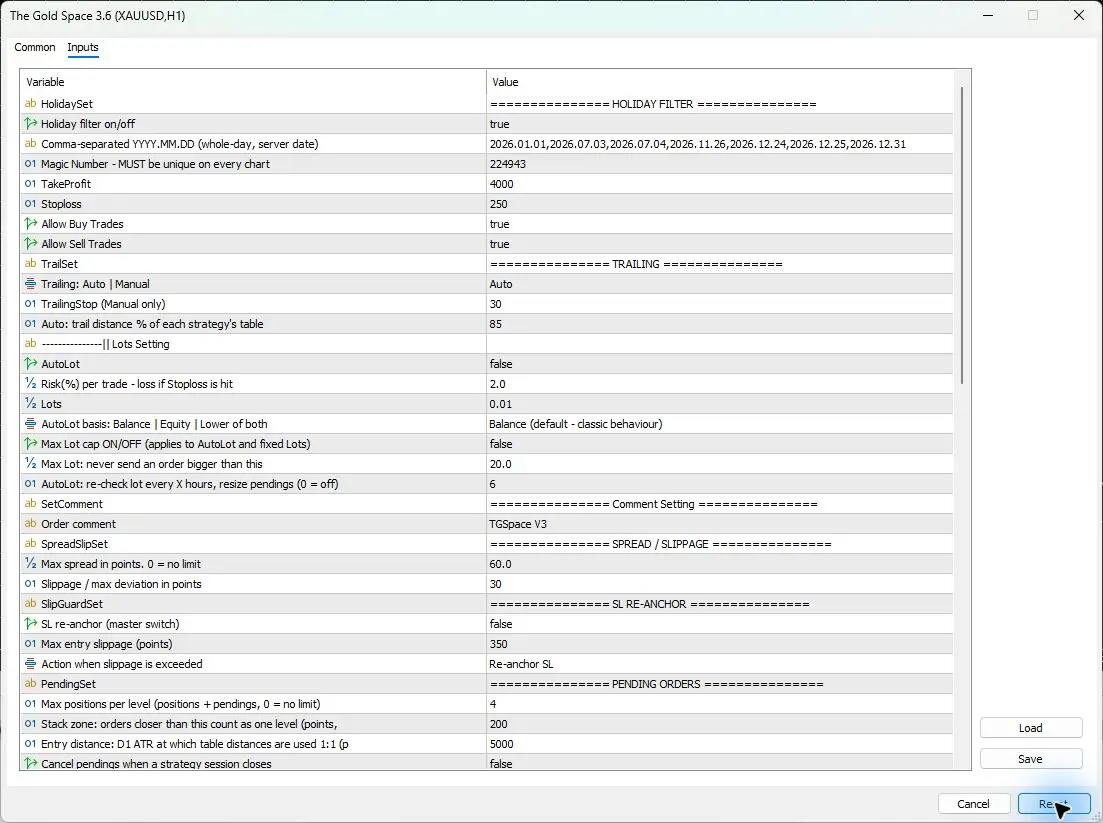
Inputs checked in version 3.6 on 2026-11-14. All 74 saved rows, including fourteen section headings, were checked after Reset in the actual MT5 Inputs window. This was a configuration inspection, with no trading or performance test.
Quick setup: one gold chart and the correct account
- Platform: this guide covers the inspected MT5 edition. The MT4 product is a separate edition.
- Market: XAUUSD/gold, with two- and three-digit quotes and supported broker prefixes/suffixes according to the current listing. Check the actual contract and volume step.
- Chart: one gold chart on any timeframe. The internal strategies read their own periods; the inspection used H1.
- Account: the developer specifies a hedging account with low spread and fast execution.
- Capital and leverage: the inspected source does not give a universal minimum. Check margin and combined exposure rather than deriving an account requirement from the default lot alone.
- Connection: keep the Windows terminal or VPS running for trailing and other EA-managed actions. Check permissions and journal messages before enabling automated trading.
Every saved input, grouped by purpose
Defaults below come from the real 3.6 Reset export. Dropdowns and colors use their visible names instead of stored numeric codes. A stored value is not necessarily active: its switch or selected mode determines whether it applies.
Holiday dates, identity and initial exits
The default holiday list contains specific 2026 server dates. Review the list for the year being traded; it is not evidence of an automatically refreshed holiday feed. The developer describes stop and target distances on a two-digit gold basis: 250 points means a 2.50 price distance and 4000 points means 40.00. The EA handles the documented three-digit conversion, so do not multiply values manually without checking the instructions.
| Input | What it does | Reset default | When to change it |
|---|---|---|---|
| HolidaySet | Separator for holiday controls. | =============== HOLIDAY FILTER =============== |
No change needed. |
Holiday filter on/offUseHolidayFilter |
Enables the whole-day holiday date list. | true |
When deliberately changing date coverage. |
Comma-separated YYYY.MM.DD (whole-day, server date)HolidayDates |
Dates excluded using the broker’s server date. | 2026.01.01,2026.07.03,2026.07.04,2026.11.26,2026.12.24,2026.12.25,2026.12.31 |
Review for the trading year and intended holidays. |
Magic Number – MUST be unique on every chartMagicNumber |
Trade identifier for this EA instance. | 224943 |
Give separate instances distinct identifiers. |
| TakeProfit | Initial take-profit distance, with gold-digit conversion described by the developer. | 4000 |
Evaluate with stop distance and expected costs. |
| Stoploss | Initial stop-loss distance, also used by automatic risk sizing. | 250 |
Recheck position size when changing the stop. |
Allow Buy TradesInpAllowBuy |
Allows buy-side entries. | true |
To deliberately restrict entry direction. |
Allow Sell TradesInpAllowSell |
Allows sell-side entries. | true |
To deliberately restrict entry direction. |
Automatic and manual trailing
Auto is selected. Each strategy has its own trigger, lock and distance; the 85 setting scales the automatic trailing distance. The stored Manual distance 30 does not replace that behavior while Auto remains selected. Entry distances adapt to daily volatility, while the current source says configured stop, target and trailing values remain at their selected values.
| Input | What it does | Reset default | When to change it |
|---|---|---|---|
| TrailSet | Separator for trailing controls. | =============== TRAILING =============== |
No change needed. |
Trailing: Auto | ManualInpTrailMode |
Chooses per-strategy automatic trailing or one manual distance. | Auto |
When evaluating a documented trailing alternative. |
TrailingStop (Manual only)TrailingStop |
Trailing distance used only in Manual mode. | 30 |
After choosing Manual mode and checking units. |
Auto: trail distance % of each strategy’s tableInpTrailPct |
Percentage applied to each strategy’s automatic trailing distance. | 85 |
When evaluating tighter or looser automatic trailing. |
Fixed lots, automatic risk and optional lot cap
Fixed sizing is the Reset configuration. AutoLot is false and Lots is 0.01, so the stored Risk 2.0 is not an active two-percent sizing instruction. UseMaxLot is also false: the stored 20.0 does not establish an enabled lot cap. Exposure is per trade and can accumulate across strategies and levels.
| Input | What it does | Reset default | When to change it |
|---|---|---|---|
Lots Setting headingSetLot |
Separator for lot sizing. | (empty heading) |
No change needed. |
| AutoLot | Enables percentage-based automatic lot sizing. | false |
After checking the account’s per-trade exposure. |
Risk(%) per trade – loss if Stoploss is hitRisk |
Per-trade percentage setting for automatic sizing. | 2.0 |
Together with AutoLot and the sizing basis. |
| Lots | Fixed volume used when automatic sizing is off. | 0.01 |
Match the contract, margin and combined exposure. |
AutoLot basis: Balance | Equity | Lower of bothInpAutoLotBasis |
Chooses the money reference for automatic sizing. | Balance (default - classic behaviour) |
When deliberately changing the sizing reference. |
Max Lot cap ON/OFF (applies to Autolot and fixed Lots)UseMaxLot |
Enables the maximum-volume cap for either sizing mode. | false |
When setting an intentional per-order volume ceiling. |
Max Lot: never send an order bigger than thisMaxLotSize |
Maximum order size when the lot cap is enabled. | 20.0 |
Together with the cap switch. |
AutoLot: re-check lot every X hours, resize pendings (0 = off)InpLotRecheckHours |
Hours between automatic pending-order lot checks; zero disables them. | 6 |
When documenting pending-order sizing refresh. |
| SetComment | Separator for the order comment. | =============== Comment Setting =============== |
No change needed. |
Order commentInpTag |
Comment identifying the EA’s orders. | TGSpace V3 |
For a recognizable account-history label. |
Spread, deviation and slippage re-anchoring
The optional slippage guard defaults to off. Re-anchor SL is its selected action if enabled: after an excessive adverse fill, the developer describes restoring the usual stop distance from the actual entry. The alternative is immediate closure. Neither the guard nor the maximum-deviation field guarantees a particular fill during a gap or fast market.
| Input | What it does | Reset default | When to change it |
|---|---|---|---|
| SpreadSlipSet | Separator for spread and deviation controls. | =============== SPREAD / SLIPPAGE =============== |
No change needed. |
Max spread in points. 0 = no limitInpMaxSpread |
Maximum entry spread in points; zero removes the limit. | 60.0 |
After checking symbol precision and trading costs. |
Slippage / max deviation in pointsInpSlippage |
Execution deviation setting in points. | 30 |
When matching the documented broker setup. |
| SlipGuardSet | Separator for post-fill slippage handling. | =============== SL RE-ANCHOR =============== |
No change needed. |
SL re-anchor (master switch)InpSlipGuard |
Enables the optional excessive-entry-slippage action. | false |
After reviewing how the selected action behaves. |
Max entry slippage (points)InpSlipGuardPts |
Slippage threshold paired with the re-anchor switch. | 350 |
Together with the enabled switch and action. |
Action when slippage is exceededInpSlipAction |
Selects stop re-anchoring or the documented immediate-close alternative. | Re-anchor SL |
After assessing the chosen post-fill response. |
Pending levels, overlap and optional M30 strategy
The four-order default applies to a level, counting positions plus pending orders; the listing describes it per side. It is not an account-wide four-position limit. Nearby orders count as one level using the 200-point stack zone. S10 is an optional M30 strategy and defaults to false; choosing an M30 chart is not the same as enabling it.
| Input | What it does | Reset default | When to change it |
|---|---|---|---|
| PendingSet | Separator for pending-level controls. | =============== PENDING ORDERS =============== |
No change needed. |
Max positions per level (positions + pendings, 0 = no limit)InpMaxStackPerLevel |
Caps positions plus pending orders at a level; zero removes the cap. | 4 |
Review exposure per level and per side. |
Stack zone: orders closer than this count as one levelInpStackZonePts |
Point distance that groups nearby orders as one level. | 200 |
When evaluating overlap and level grouping. |
Entry distance: D1 ATR reference for 1:1 table distancesInpEntryAtrRef |
D1 ATR reference used for entry-distance scaling. | 5000 |
Only after confirming the full distance convention. |
Cancel pendings when a strategy session closesInpCancelOffSession |
Cancels pending orders at that strategy’s session end. | false |
When changing pending-order session handling. |
| StrategySet | Separator for the optional strategy. | =============== STRATEGIES =============== |
No change needed. |
Add M30 trades (S10) RiskyInpAddM30 |
Adds the optional, more frequent M30 strategy S10. | false |
When explicitly evaluating the added exposure. |
Market-close windows and sessions
Keep the 90-minute Close window separate from the 30-minute pending-cancellation setting and the 15-minute post-open entry delay. The current source describes pending cancellation before the daily close, including Friday. The labels do not establish that every open position is automatically liquidated by the 90-minute setting. Check actual broker sessions and the applicable instructions before changing it.
| Input | What it does | Reset default | When to change it |
|---|---|---|---|
| MarketSet | Separator for market-hour controls. | =============== MARKET WINDOW =============== |
No change needed. |
Close window (minutes before day end)InpCloseWindow |
Minutes-before-day-end market-window setting. | 90 |
Keep separate from pending cancellation and open delay. |
Cancel all pendings before market close (min, 0 = off)InpPreCloseCancel |
Minutes before market close to cancel pending orders. | 30 |
For a documented market-close policy. |
Resume entries after openInpOpenDelay |
Delay before new entries resume after market open. | 15 min after open |
After reviewing opening spreads and execution. |
No trading on weekend barsInpCloseWeekend |
Excludes weekend bars when enabled. | false |
To deliberately change weekend handling. |
Trade Asia session (00:00-08:00)InpSessAsia |
Allows trading during the named Asian session. | true |
When deliberately changing session coverage. |
Offline news calendar and broker offset
The calendar is built into the EA; the listing says this calendar requires no internet service. FOMC, NFP and CPI are enabled, with 60 minutes before and after. Pending deletion is true, while open-position closure is false. Those are separate actions, and the broker offset 99 means Auto. The calendar does not remove the need for terminal connectivity to execute trade management.
| Input | What it does | Reset default | When to change it |
|---|---|---|---|
| NewsFilterSet | Separator for news-calendar controls. | =============== NEWS FILTER =============== |
No change needed. |
News filter on/off (built-in calendar, no internet)InpNewsEnable |
Enables the built-in event calendar. | true |
When deliberately changing scheduled-news coverage. |
Block FOMC rate decisionsInpNewsFOMC |
Includes FOMC decisions in the news filter. | true |
When changing the enabled filter’s event coverage. |
Block US jobs report (NFP)InpNewsNFP |
Includes the US employment release. | true |
When changing the enabled filter’s event coverage. |
Block US CPIInpNewsCPI |
Includes US inflation releases. | true |
When changing the enabled filter’s event coverage. |
Stop trading this many minutes BEFORE an eventInpNewsBefore |
Pre-event interval for the news pause. | 60 |
For a documented alternative news window. |
Keep trading paused this many minutes AFTER an eventInpNewsAfter |
Post-event interval before trading resumes. | 60 |
For a documented alternative news window. |
Delete pending ordersInpNewsClosePend |
Removes pending orders around filtered events. | true |
When changing the filter’s pending-order action. |
Also close OPEN positionsInpNewsCloseOpen |
Adds open-position closure to news handling. | false |
When deliberately changing running-position treatment. |
Broker GMT offset in hours (99 = Auto)InpBrokerGmtOff |
Broker clock offset; the interface uses99 for automatic detection. | 99 |
Use a manual value only after checking server time. |
Total risk and daily drawdown
Both additional risk thresholds default to zero and are disabled. The daily-DD selector shows Percent of daily peak equity; do not assume it matches a firm’s start-of-day-balance rule. Match the definition, units and required behavior before enabling a threshold. No configured value guarantees an execution price or prevents a loss overshoot.
| Input | What it does | Reset default | When to change it |
|---|---|---|---|
| RiskSet | Separator for additional risk controls. | =============== RISK CONTROL =============== |
No change needed. |
Max total risk % of equity (0 = off)InpMaxTotalRisk |
Additional equity-percentage total-risk control; zero disables it. | 0.0 |
After checking how the desired total exposure is measured. |
Max daily DD (0 = off)InpMaxDailyDD |
Daily drawdown threshold; zero disables it. | 0.0 |
With the account’s definition of daily loss established. |
Max daily DD unitInpMaxDDUnit |
Chooses how the daily drawdown threshold is expressed. | Percent of daily peak equity |
Match units and reference before enabling the threshold. |
Statistics panel, candle colors and diagnostics
Panel positions, text and colors affect presentation. The preset candle theme is selected, so stored custom colors apply only if Custom is chosen. The extra logging switch can help explain skipped entries; it is off in Reset.
| Input | What it does | Reset default | When to change it |
|---|---|---|---|
| HUDStatsSet | Separator for panel controls. | =============== PROFIT / STATS HUD =============== |
No change needed. |
| HUD_EnableStatsPanel | Shows the profit and statistics panel. | true |
For the desired chart presentation. |
Panel top-left X (from chart left)Panel_X |
Horizontal panel position from the chart’s left edge. | 15 |
If the panel overlaps other chart content. |
Panel top-left Y (from chart top)Panel_Y |
Vertical panel position from the chart’s top edge. | 30 |
If the panel overlaps other chart content. |
Fine-tune: shift all values left/rightHUD_Value_OffsetX |
Horizontal offset for displayed panel values. | 0 |
To improve panel alignment. |
Fine-tune: shift all values up/downHUD_Value_OffsetY |
Vertical offset for displayed panel values. | 0 |
To improve panel alignment. |
| HUD_Stats_FontSize | Statistics-panel text size. | 9 |
For a readable display size. |
| HUD_Stats_Font | Statistics-panel typeface. | Arial |
For a readable available font. |
| HUD_Stats_PosColor | Color used for positive panel values. | LimeGreen |
For chart contrast preferences. |
| HUD_Stats_NegColor | Color used for negative panel values. | Tomato |
For chart contrast preferences. |
| HUD_Stats_ZeroColor | Color used for zero panel values. | Silver |
For chart contrast preferences. |
| ChartThemeSet | Separator for candle-color controls. | =============== CHART / CANDLE COLORS =============== |
No change needed. |
Apply candle color themeApplyCandleColors |
Applies the selected candle theme. | true |
For the desired chart presentation. |
| CandleTheme | Chooses the preset or custom candle colors. | Gold + Cyan (recommended) |
For chart contrast preferences. |
Used only if CandleTheme = Custom (bull)Custom_BullColor |
Custom bullish candle color; inactive in the preset theme. | Gold |
Only with the Custom theme selected. |
Used only if CandleTheme = Custom (bear)Custom_BearColor |
Custom bearish candle color; inactive in the preset theme. | DeepSkyBlue |
Only with the Custom theme selected. |
| DebugSet | Separator for logging controls. | =============== DEBUG =============== |
No change needed. |
Log why entries are skippedInpVerboseLog |
Enables additional skipped-entry diagnostic messages. | false |
When investigating a specific entry or filter issue. |
Save and load a configuration you can reproduce
Use Save in Inputs to record the chosen values with the 3.6 build, exact symbol, account currency and contract specifications. Use Load with a compatible configuration, then read back the lot mode, risk basis, stop distance, enabled filters and level limits. A successful load does not establish suitable exposure.
Start the comparison from a recorded configuration. Review fixed volume and potential simultaneous positions together; optional additional strategies and automatic sizing can change exposure in different ways. Keep a record of one intentional change at a time.
Common mistakes and fixes
- No new entries: check the gold symbol, automated-trading permission, connection, spread, event window, holiday date and market-hour status. Diagnostic logging can help identify skipped entries.
- Unexpected lot size: check AutoLot first, then its Risk and basis or the fixed Lots field. Check whether the optional maximum-lot cap is actually enabled.
- Manual trailing seems ignored: Auto mode uses the percentage and per-strategy values; select Manual only when evaluating its separate distance.
- Pending orders disappear: distinguish news deletion, the pre-close cancellation rule, off-session cancellation and normal replacement when a breakout level changes.
- More than four trades exist: the limit is per level and side, not a global position count. Review all strategies and levels.
- Holiday behavior becomes outdated: read the full year-specific date list and update it using the intended schedule.
The Gold Space settings FAQ
Must I use an H1 chart?
The current listing says one gold chart on any timeframe. The strategies read their own periods, so changing the attached chart alone does not change every strategy’s timeframe.
Does Risk 2.0 mean the Reset setup risks two percent?
No. Automatic sizing is false in Reset, and the fixed Lots value is 0.01. The percentage field applies to automatic sizing.
Is the maximum lot already capped at 20?
No. The cap switch is false. A stored maximum value is not an enabled cap.
Does the news filter close open positions?
Open-position closure is false in Reset; pending-order deletion is true. Both remain separate from blocking new entries around the selected events.
Does the four-position limit apply to the whole account?
No. The listing describes a level-based limit per side that includes positions and pending orders. Multiple strategies and levels can create greater combined exposure.
Can I import an older set file?
Check compatibility with the actual build and read every value after loading. Old values can change sizing, holiday coverage or strategy choices without making the terminal show a clear error.
Sources and version record
Inputs checked in version 3.6 on 2026-11-14. All fields and defaults were inspected after Reset in the actual MT5 Inputs window and checked against its complete Save export. The behavior descriptions were compared with the official The Gold Space listing, checked on the same date. This configuration inspection does not establish trading performance.
Choose the matching MT5 edition. Check the current offer and delivery details before ordering.