Scalping Robot Pro MT5 settings combine gold-M1 position sizing, adaptive exits and filters for spread, volatility, trading hours and economic news.
Available from CheaperForex. Check the product page for the current offer, or read the separate assessment of its strategy and evidence.
$399.95 · $319.96 with crypto Buy Scalping Robot Pro MT5
Inputs checked in version 7.2 on 2026-11-14. The tables record all 86 rows saved from the actual MT5 Inputs window after Reset, including two section headings. The work checked configuration fields and defaults; no trading or performance test was run for this guide.
Quick setup: the documented market and chart
- Symbol and timeframe: the current listing specifies XAUUSD on M1. Open the broker’s actual gold symbol and check its contract specifications.
- Published minimum deposit: 1,000. Confirm the applicable account currency and contract size; this figure does not establish a maximum loss.
- Leverage: the developer lists 1:10 through 1:2000. Margin availability still depends on the broker and position size.
- Account: the listing names hedging and netting, alongside pricing/account labels including Cent, Standard, RAW and ECN. Confirm how the chosen account handles positions and gold volume.
- Terminal: use the matching MT5 build, check its Inputs and journal, and enable automated trading only when the intended setup is ready.
- VPS: use a continuously running Windows terminal if operation must continue while your computer is off. A VPS does not correct sizing or schedule mistakes.
A broker suffix is part of the symbol name. Do not assume every symbol containing “gold” has the same tick value, minimum volume or trading session. Match the supplied instructions to that broker’s symbol before enabling the EA.
Every saved input, grouped by purpose
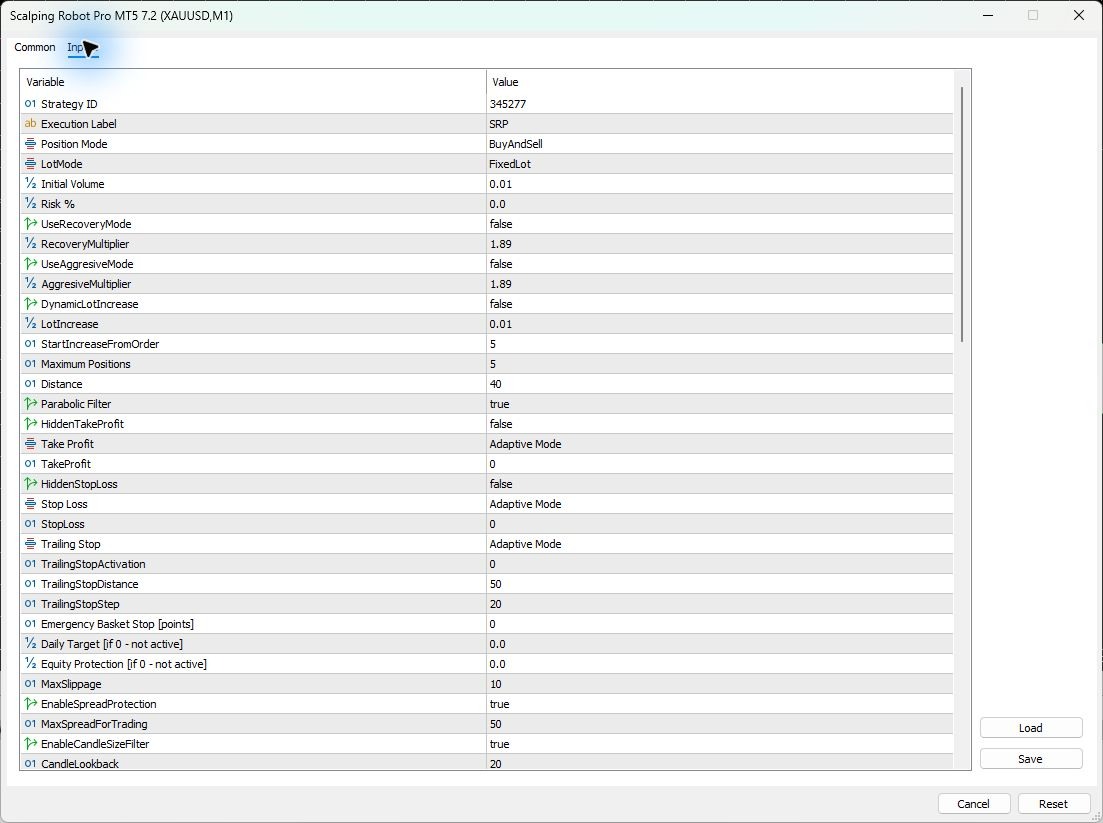
Each default below comes from the 7.2 Reset export. The dropdown defaults are shown by their visible names, rather than the numeric enum codes stored in a configuration file. A control’s presence does not reveal its proprietary formula. Where the dialog does not specify units, confirm them in the current instructions before changing a value.
Identity, direction and position sizing
FixedLot is the Reset sizing mode. Risk % is 0.0, but this does not make the 0.01 starting volume risk-free. Recovery, aggressive mode and dynamic lot increases are off. The inputs alone do not establish their complete sizing formulas or a tested risk tier.
| Input | What it does | Reset default | When to change it |
|---|---|---|---|
Strategy IDMagic |
Identifier used to distinguish this strategy’s trades. | 345277 |
Use a distinct ID for a separate instance. |
Execution Labeltcomment |
Comment identifying the EA’s trade executions. | SRP |
When you need a recognizable journal label. |
Position ModeTradeDirection |
Selects buy, sell or both-direction operation. | BuyAndSell |
Only for a deliberate direction restriction. |
| LotMode | Selects sizing mode; Reset uses FixedLot. | FixedLot |
After verifying the alternative sizing method. |
Initial VolumeLots |
Starting volume used by the fixed-lot configuration. | 0.01 |
Match volume to account and contract size. |
Risk %Risk |
Percentage-risk field paired with the sizing controls. | 0.0 |
After selecting and checking risk-based sizing. |
| UseRecoveryMode | Switches the separately named recovery option on or off. | false |
Leave off without its current instructions. |
| RecoveryMultiplier | Multiplier associated with the recovery option. | 1.89 |
Only when deliberately configuring that option. |
| UseAggresiveMode | Switches the separately named aggressive option. | false |
Leave off without a defined exposure plan. |
| AggresiveMultiplier | Multiplier associated with the aggressive option. | 1.89 |
Only with its corresponding mode documented. |
| DynamicLotIncrease | Enables the optional incremental lot-increase control. | false |
Only when evaluating the increased exposure. |
| LotIncrease | Increment paired with dynamic lot increases. | 0.01 |
Only with dynamic increases intentionally enabled. |
| StartIncreaseFromOrder | Order-number threshold for that incremental increase. | 5 |
Only with that sizing feature enabled. |
Maximum PositionsmaxOrders |
Configured upper position-count control. | 5 |
After reviewing concurrent exposure and margin. |
Entry spacing and parabolic filter
| Input | What it does | Reset default | When to change it |
|---|---|---|---|
DistanceEntryDistance |
Entry-distance control; the dialog does not state its unit. | 40 |
Use the current manual before changing units. |
Parabolic FilterSAR |
Enables the parabolic entry filter. | true |
Only when evaluating that filter separately. |
Exits, trailing and account controls
Adaptive Mode is selected independently for take profit, stop loss and trailing. Keep each selector with its associated numeric fields when saving a configuration. A numeric zero beside an adaptive selector must not be interpreted as proof that the EA has no exit logic. Daily Target and Equity Protection explicitly label zero as inactive; the Emergency Basket Stop field explicitly labels its unit as points.
| Input | What it does | Reset default | When to change it |
|---|---|---|---|
| HiddenTakeProfit | Selects the hidden take-profit option. | false |
Only after understanding terminal-side management. |
Take ProfitTakeProfitA |
Selects the take-profit mode; Reset is Adaptive Mode. | Adaptive Mode |
When following a documented fixed-TP setup. |
| TakeProfit | Numeric take-profit setting paired with the mode selector. | 0 |
Check its unit and active mode first. |
| HiddenStopLoss | Selects the hidden stop-loss option. | false |
Only after understanding terminal-side management. |
Stop LossStopLossA |
Selects the stop-loss mode; Reset is Adaptive Mode. | Adaptive Mode |
When following a documented fixed-SL setup. |
| StopLoss | Numeric stop-loss setting paired with the mode selector. | 0 |
Check its unit and active mode first. |
Trailing StopTrailingStopA |
Selects trailing behavior; Reset is Adaptive Mode. | Adaptive Mode |
When using a documented alternative trailing setup. |
| TrailingStopActivation | Activation threshold paired with trailing settings. | 0 |
After checking the selected trailing mode. |
| TrailingStopDistance | Distance control for trailing-stop management. | 50 |
After verifying units and broker stop levels. |
| TrailingStopStep | Step control for successive trailing adjustments. | 20 |
After verifying units and broker stop levels. |
Emergency Basket Stop [points]totalSL |
Emergency basket-stop setting explicitly labeled in points. | 0 |
Only with basket scope and trigger documented. |
Daily Target [if 0 – not active]DailyProfit |
Optional daily target; its label makes zero inactive. | 0.0 |
After verifying units and the daily reset. |
Equity Protection [if 0 – not active]maxLoss |
Optional equity protection; its label makes zero inactive. | 0.0 |
After verifying reference value, units and actions. |
Spread and execution filters
| Input | What it does | Reset default | When to change it |
|---|---|---|---|
| MaxSlippage | Slippage-tolerance control for trade execution. | 10 |
Match documented units to the broker symbol. |
| EnableSpreadProtection | Enables the spread-related entry protection. | true |
Keep enabled for the default reference setup. |
| MaxSpreadForTrading | Spread threshold paired with spread protection. | 50 |
After checking symbol precision and actual costs. |
Candle-size filter
| Input | What it does | Reset default | When to change it |
|---|---|---|---|
| EnableCandleSizeFilter | Enables the abnormal candle-size entry filter. | true |
Only when evaluating that filter separately. |
| CandleLookback | Lookback setting for the candle-size comparison. | 20 |
With a documented alternative filter configuration. |
| MaxCandleSizeMultiplier | Multiplier threshold used by the candle-size filter. | 2.5 |
With a documented alternative threshold. |
| UseCurrentCandle | Controls inclusion of the current candle in this filter. | true |
Only when evaluating that filter’s behavior. |
ATR filter
| Input | What it does | Reset default | When to change it |
|---|---|---|---|
| EnableATRFilter | Enables the ATR-based volatility filter. | true |
Only when evaluating that filter separately. |
| ATRPeriod | Period setting for its ATR calculation. | 14 |
With a documented alternative ATR configuration. |
| MinATRMultiplier | Lower multiplier setting for the ATR filter. | 0.5 |
With a documented alternative volatility range. |
| MaxATRMultiplier | Upper multiplier setting for the ATR filter. | 2.5 |
With a documented alternative volatility range. |
| ATRLookback | Lookback setting used with the ATR filter. | 50 |
With a documented alternative ATR configuration. |
Tick-activity filter
| Input | What it does | Reset default | When to change it |
|---|---|---|---|
| EnableTickActivityFilter | Enables the tick-activity entry filter. | true |
Only when evaluating that filter separately. |
| MinTicksPerTimePeriod | Minimum tick-count setting for the activity window. | 5 |
After observing the broker’s actual tick feed. |
TickActivityPeriod [s]TickActivityPeriod |
Activity-window duration explicitly labeled in seconds. | 60 |
With a documented alternative activity window. |
Price-deviation and spike filters
The default volatility filter and the optional spike detector are separate switches. Volatility protection is on; the multi-window spike detector is off. Its stored windows and thresholds are not evidence that this extra detector is active.
| Input | What it does | Reset default | When to change it |
|---|---|---|---|
| EnableVolatilityFilter | Enables the additional volatility protection. | true |
Keep enabled for the default reference setup. |
| VolatilityCheckSeconds | Seconds-based observation setting for volatility protection. | 10 |
With a documented alternative volatility setup. |
| MaxPriceDeviationPoints | Price-deviation threshold labeled in points. | 150 |
After checking symbol precision and documentation. |
| EnableVolatilitySpikeDetector | Enables the separate multi-window spike detector. | false |
Reset leaves this additional detector off. |
SpikeWindow1 [s]SpikeWindow1 |
First spike-observation window in seconds. | 1 |
Only when configuring the spike detector. |
SpikeThresholdPoints1SpikeThreshold1 |
Point threshold paired with the first window. | 250 |
Only with the spike detector deliberately configured. |
SpikeWindow2 [s]SpikeWindow2 |
Second spike-observation window in seconds. | 3 |
Only when configuring the spike detector. |
SpikeThresholdPoints2SpikeThreshold2 |
Point threshold paired with the second window. | 500 |
Only with the spike detector deliberately configured. |
SpikeWindow3 [s]SpikeWindow3 |
Third spike-observation window in seconds. | 5 |
Only when configuring the spike detector. |
SpikeThresholdPoints3SpikeThreshold3 |
Point threshold paired with the third window. | 800 |
Only with the spike detector deliberately configured. |
| SpikeCooldownMinutes | Cooldown setting for the optional spike detector, in minutes. | 5 |
Only when configuring the spike detector. |
AI geopolitical filter
The developer describes server-side monitoring of political publications and temporary suspension of new entries when significant risk is detected. The Inputs check confirms the switch and its default, not the availability or effectiveness of the remote service. Follow the current connectivity instructions and check status messages.
| Input | What it does | Reset default | When to change it |
|---|---|---|---|
AI FilterAIFilterInit |
Enables the developer-described geopolitical protection layer. | true |
Follow the current connectivity and service instructions. |
Sessions and weekday schedule
AllSessions is true, individual named sessions are false, and 24 hours Trading is false in the Reset export. Weekday windows are 08:00–18:00. Do not treat those numbers as your local time or assume how the global and individual switches override each other. Confirm the current clock basis and precedence in the instructions. No separate GMT-offset input appears in this inspected set.
| Input | What it does | Reset default | When to change it |
|---|---|---|---|
| TimeProtection | Text heading separating the time settings. | --- Time Settings --------------------- |
No trading adjustment is needed. |
| AllSessions | Global session-selection control. | true |
Check its interaction with individual sessions first. |
| SydneySession | Individual Sydney session-selection control. | false |
When deliberately restricting sessions. |
| TokyoSession | Individual Tokyo session-selection control. | false |
When deliberately restricting sessions. |
| LondonSession | Individual London session-selection control. | false |
When deliberately restricting sessions. |
| NewYorkSession | Individual New York session-selection control. | false |
When deliberately restricting sessions. |
24 hours TradingTrading24h |
Separate round-the-clock trading selection. | false |
After checking how daily schedules interact. |
Monday TradingMonday |
Enables Monday trading in the weekday schedule. | true |
To remove that weekday from the schedule. |
Monday Session StartMondayStartTime |
Configured Monday starting time. | 08:00 |
After confirming the EA’s clock basis. |
Monday Session EndMondayEndTime |
Configured Monday ending time. | 18:00 |
After confirming the EA’s clock basis. |
Tuesday TradingTuesday |
Enables Tuesday trading in the weekday schedule. | true |
To remove that weekday from the schedule. |
Tuesday Session StartTuesdayStartTime |
Configured Tuesday starting time. | 08:00 |
After confirming the EA’s clock basis. |
Tuesday Session EndTuesdayEndTime |
Configured Tuesday ending time. | 18:00 |
After confirming the EA’s clock basis. |
Wednesday TradingWednesday |
Enables Wednesday trading in the weekday schedule. | true |
To remove that weekday from the schedule. |
Wednesday Session StartWednesdayStartTime |
Configured Wednesday starting time. | 08:00 |
After confirming the EA’s clock basis. |
Wednesday Session EndWednesdayEndTime |
Configured Wednesday ending time. | 18:00 |
After confirming the EA’s clock basis. |
Thursday TradingThursday |
Enables Thursday trading in the weekday schedule. | true |
To remove that weekday from the schedule. |
Thursday Session StartThursdayStartTime |
Configured Thursday starting time. | 08:00 |
After confirming the EA’s clock basis. |
Thursday Session EndThursdayEndTime |
Configured Thursday ending time. | 18:00 |
After confirming the EA’s clock basis. |
Friday TradingFriday |
Enables Friday trading in the weekday schedule. | true |
To remove that weekday from the schedule. |
Friday Session StartFridayStartTime |
Configured Friday starting time. | 08:00 |
After confirming the EA’s clock basis. |
Friday Session EndFridayEndTime |
Configured Friday ending time. | 18:00 |
After confirming the EA’s clock basis. |
NFP Trading PermissionTradingNonFarmFriday |
Permission to trade on the NFP-related Friday. | false |
Only after reviewing the event and news controls. |
Holiday Trading Permission [12Dec-12Jan]TradingDuringHolidays |
Holiday-period trading permission for the dates shown. | false |
Only when deliberately allowing holiday trading. |
Scheduled economic-news protection
The current listing describes high-impact economic-news pauses of 90 minutes before and after applicable events, matching the inspected defaults. This scheduled filter is distinct from the geopolitical and volatility filters. These entry controls do not, on their own, establish what happens to positions already open.
| Input | What it does | Reset default | When to change it |
|---|---|---|---|
| NewsProtection | Text heading separating the scheduled-news settings. | --- News Protection Settings --------------------- |
No trading adjustment is needed. |
News ProtectionCheckNewsFilterInit |
Enables the scheduled economic-news protection. | true |
Keep enabled for the default reference setup. |
News Pause BeforedoNotTradeBeforeInMinutes |
Minutes to pause entries before applicable news. | 90 |
With a documented alternative news window. |
News Pause AfterdoNotTradeAfterInMinutes |
Minutes to pause entries after applicable news. | 90 |
With a documented alternative news window. |
USD Event FilterReportForUSD |
Includes applicable USD events in news protection. | true |
Only when deliberately changing event coverage. |
EUR Event FilterReportForEUR |
Includes applicable EUR events in news protection. | true |
Only when deliberately changing event coverage. |
A starting configuration you can document
Use the Reset configuration as a reproducible reference, then determine the appropriate starting volume for the actual account. Do not relabel it “low risk” or import an old preset simply because its filename sounds conservative. Preserve a record of the EA version, broker symbol, account type, volume, filter choices and schedule.
Use Save in Inputs to keep that configuration. Use Load only with a file intended for this exact EA and compatible build, then read the resulting values again. Older configurations can carry different magic numbers, exposure limits, filters and trading hours. A successful load is not evidence of suitable risk.
Broker, execution and clock checks
Check the gold contract’s volume step, tick size/value, stop-distance restrictions and trading sessions. A displayed threshold such as MaxSpreadForTrading must be interpreted using the EA’s documented units and the broker’s symbol precision; do not convert it into a universal number of dollars or pips.
Keep the terminal connected, confirm its journal is receiving prices, and check schedule and news status before changing filters. Compare the platform’s server time with the clock basis stated in the current instructions. A laptop’s local timezone is not a substitute for that check.
Common mistakes and fixes
- No trades: check automated-trading permission, symbol, M1 chart, market hours and the Experts/Journal messages. A session, spread, news, activity or geopolitical pause can legitimately prevent an entry.
- A preset appears to load but results differ: compare every saved value and the build version. Do not assume a 2.0 preset reproduces the 7.2 Reset inputs.
- Unexpected volume: inspect LotMode, Initial Volume, Risk %, optional increase/recovery switches and Maximum Positions together.
- Trading hours look wrong: verify the clock basis and weekday/global session choices before shifting every time value.
- A protection seems absent: check whether it is enabled. Daily Target and Equity Protection are inactive at their zero defaults, and the separate spike detector defaults to false.
Scalping Robot Pro MT5 settings FAQ
Which timeframe and symbol should I use?
The current developer listing specifies XAUUSD on M1. Check the broker’s actual gold symbol and its contract specifications.
Does Risk % = 0 mean there is no trading risk?
No. The inspected default is FixedLot with an Initial Volume of 0.01. The percentage field is not a guarantee of zero exposure or losses.
Why does the EA pause when automated trading is enabled?
Several independent filters can prevent new entries. Read the journal and check the schedule, spread, activity, news and service status before changing settings.
Can I reuse a preset from an older release?
Check compatibility and read back all values after loading it. An older configuration can differ from the 7.2 Reset export; its filename alone does not establish a match.
Are the optional safety controls all enabled by default?
No. The scheduled-news, geopolitical, spread, candle, ATR, tick-activity and main volatility switches are true, but the separate spike detector is false. Daily Target and Equity Protection are zero and labeled inactive.
Does this guide demonstrate profitable trading?
No. It documents inputs and Reset defaults in the inspected build. Strategy evidence and its limitations are assessed separately in the linked review.
Sources and version record
Inputs checked in version 7.2 on 2026-11-14. The parameter tables were checked against the real MT5 Inputs window after Reset and the complete native Save export. Market, timeframe and developer-described protection features were checked against the official Scalping Robot Pro MT5 listing on the same date.
Choose the matching MT5 product. Check the current offer and delivery details before ordering.